Installing the Root CA Certificate
Install the Siovos Root CA certificate on macOS, Windows, and Linux to access your services securely
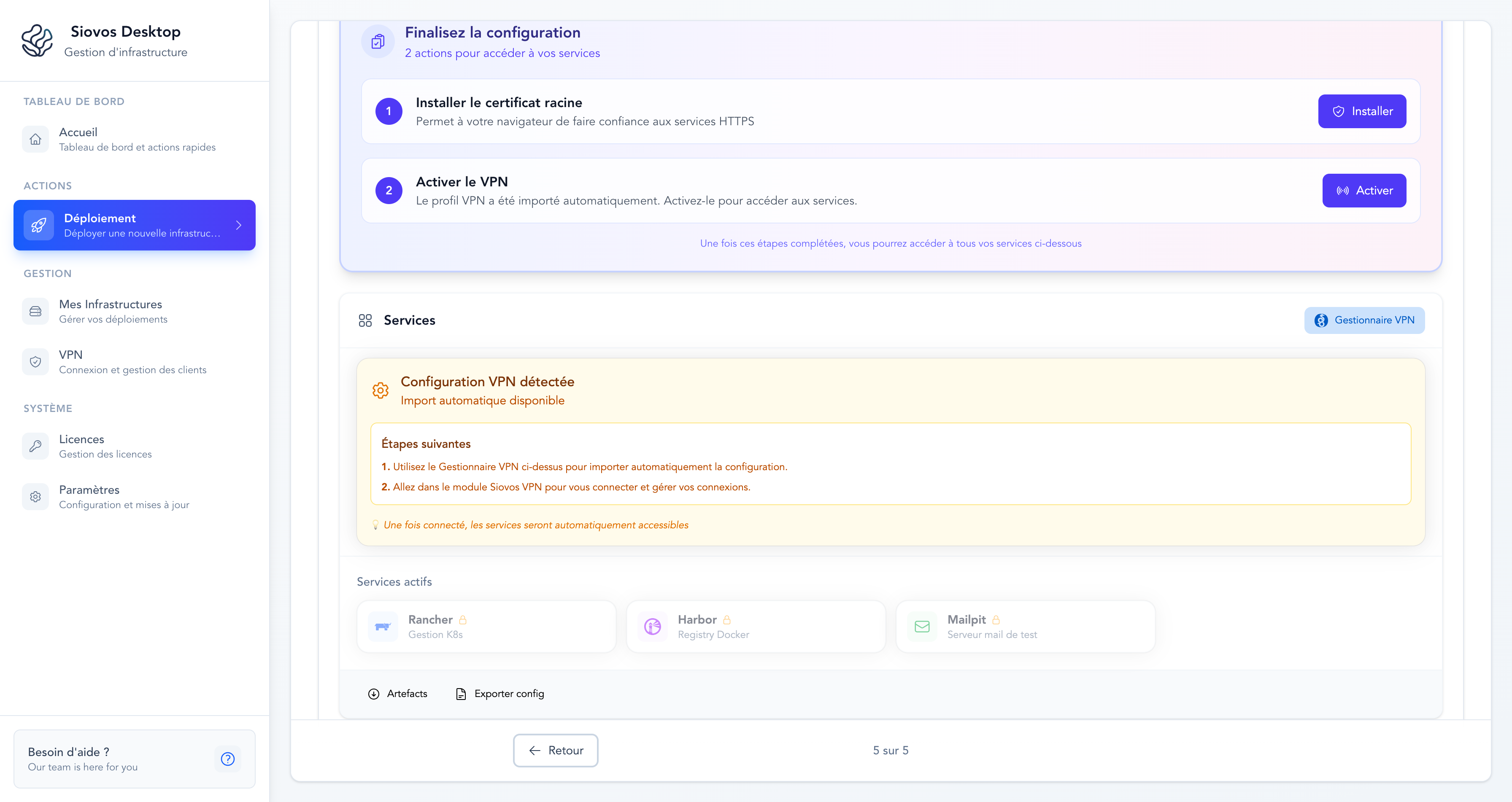
After deploying your infrastructure with Step-CA enabled, you need to install the Root CA certificate on your computer to access services like Rancher, Harbor, and other HTTPS endpoints without security warnings.
Why is this needed?#
Your deployed infrastructure uses a private Certificate Authority (Step-CA) to issue SSL/TLS certificates for internal services. Since this CA is private and not publicly trusted (like Let's Encrypt), your operating system doesn't recognize it by default.
Installing the Root CA certificate tells your system: "Trust certificates issued by this authority."
This is a one-time setup per computer. Once installed, all browsers and applications will trust your infrastructure's SSL certificates.
macOS Installation#
On macOS, Siovos Desktop will automatically generate a signed configuration profile (.mobileconfig) to install the certificate. Due to macOS security policies, you'll need to manually approve the installation in System Settings.
Step 1: Start the Installation#
- Open Siovos Desktop
- Go to the Infrastructure page
- Click "Install SSL Certificate"
The application will open a configuration profile automatically.
Step 2: Open System Settings#
After clicking the install button, macOS will display a notification. You need to go to System Settings to complete the installation.
- Open System Settings (click Apple menu → System Settings)
- Navigate to General → Device Management (or Profiles on older macOS versions)
Step 3: Install the Profile#
- You'll see "Siovos Root CA" in the list of profiles
- Click on it to view the details
- Click "Install..."
- Enter your Mac password when prompted
- Click "Install" again to confirm
Step 4: Verify Installation#
Once installed, the profile will show as "Verified" with a green checkmark. You can now access your services:
https://rancher.internalhttps://harbor.internal- Other configured services
Certificate not trusted? If you still see security warnings in your browser, try:
- Completely quit and restart your browser
- Clear your browser's SSL cache
- Verify the profile shows as "Installed" in System Settings
Why can't this be automatic?#
Apple's security model requires explicit user consent for trusting new Certificate Authorities. This protects you from malicious software silently installing root certificates. Even signed applications from verified developers (like Siovos Desktop) cannot bypass this security measure.
This is the same process used by enterprise IT departments and MDM solutions.
Windows Installation#
On Windows, the certificate installation process uses the Windows Certificate Manager.
Automatic Installation#
- Click "Install SSL Certificate" in Siovos Desktop
- A Windows UAC prompt will appear asking for administrator access
- Click "Yes" to allow the installation
- The certificate will be added to the Windows certificate store
Manual Installation (if needed)#
If automatic installation fails:
- Locate the certificate file on your Desktop:
siovos-root-ca.crt - Right-click the file and select "Install Certificate"
- Choose "Local Machine" and click Next
- Select "Place all certificates in the following store"
- Click Browse and select "Trusted Root Certification Authorities"
- Click Next, then Finish
Linux Installation#
On Linux, the certificate is installed system-wide using the OS certificate store.
Automatic Installation#
- Click "Install SSL Certificate" in Siovos Desktop
- You'll be prompted for your password (via
pkexecorsudo) - The certificate will be copied to
/usr/local/share/ca-certificates/ - The certificate store will be updated automatically
Manual Installation (Debian/Ubuntu)#
sudo cp ~/Desktop/siovos-root-ca.crt /usr/local/share/ca-certificates/
sudo update-ca-certificatesManual Installation (RHEL/Fedora)#
sudo cp ~/Desktop/siovos-root-ca.crt /etc/pki/ca-trust/source/anchors/
sudo update-ca-trustTroubleshooting#
Browser still shows security warning#
- Restart your browser completely (all windows)
- Clear the browser's SSL state/cache
- Verify the certificate is installed in your system's trust store
Profile won't install on macOS#
- Make sure you're using macOS 10.15 or later
- Try downloading the profile again from Siovos Desktop
- Check that your user account has administrator privileges
Certificate expired#
Root CA certificates are valid for 10 years. If your certificate has expired:
- Redeploy your infrastructure with Step-CA enabled
- Download and install the new certificate
- Remove the old profile from System Settings
Need help? Contact our support team