We use cookies to improve your experience. You can accept or refuse them. Learn more in our Privacy Policy.

License Activation

Learn how to activate your Siovos Desktop license

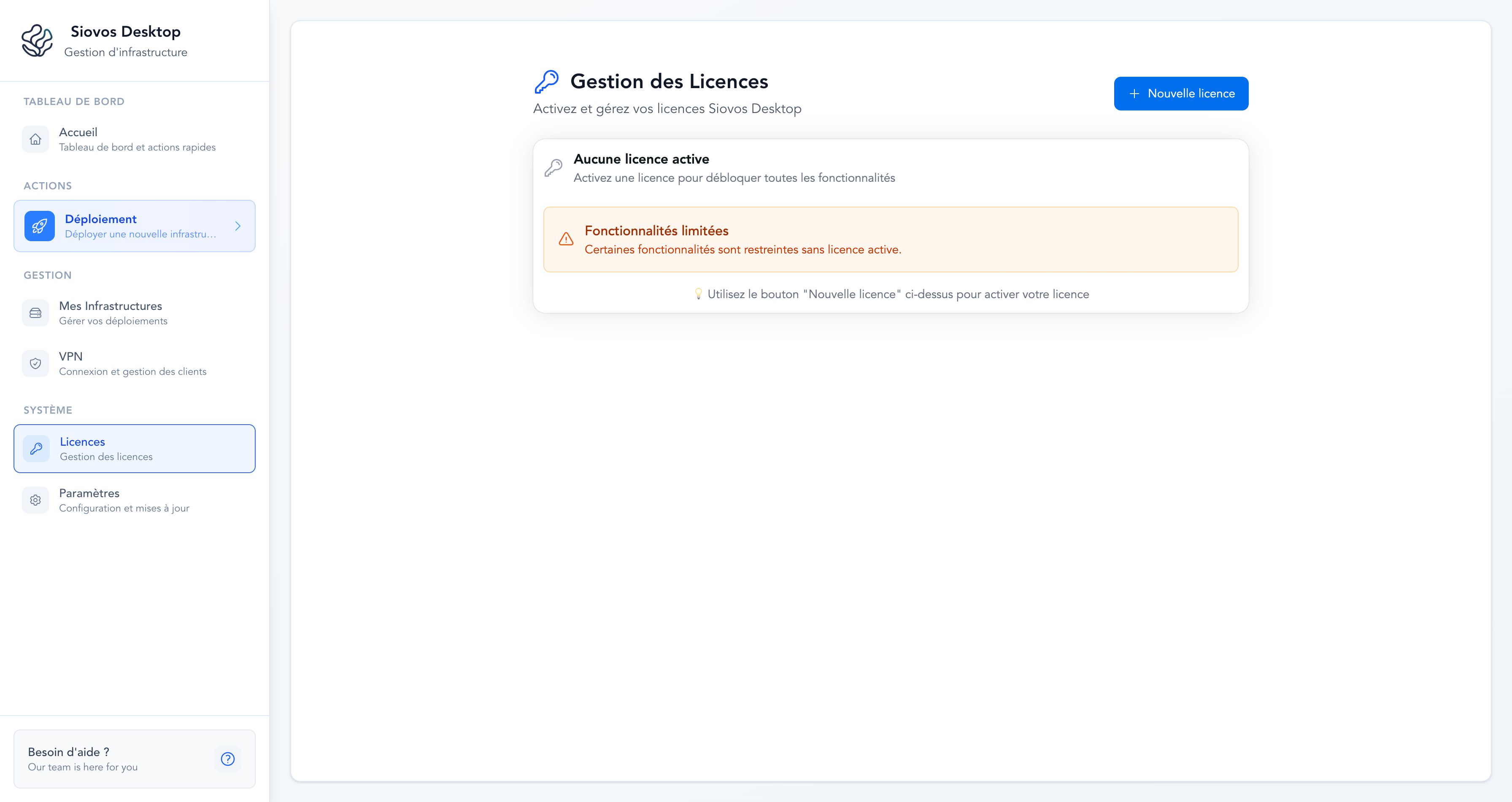
This guide will walk you through activating your Siovos Desktop license. Activation is required to use the application and deploy infrastructure.

Receiving Your License Key#

After purchasing a Siovos Desktop subscription, you will receive an email containing:

  • Your unique license key (format: XXXX-XXXX-XXXX-XXXX)
  • Your plan tier (Starter, Professional, or Enterprise)
  • Download links for your operating system
  • Link to this documentation

Check your spam folder: If you don't see the email within a few minutes, please check your spam/junk folder. The email is sent from contact@siovos.com.

Activating Your License#

First Launch Activation#

When you launch Siovos Desktop for the first time:

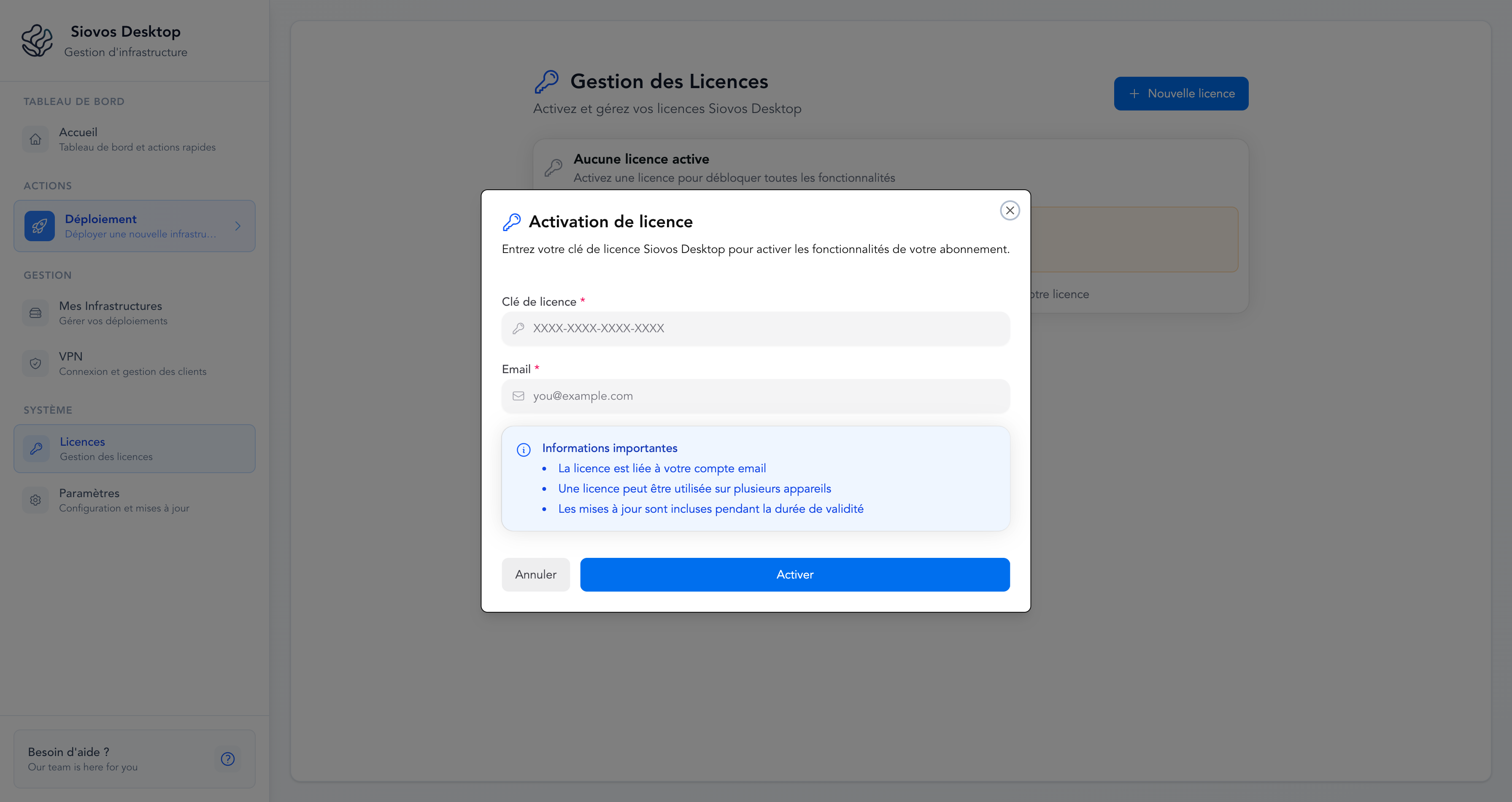
The application will display a license activation screen

Paste your license key in the input field

Click "Activate License"

Wait for validation (this requires an internet connection)

Once validated, you'll see a success message and the main dashboard

Manual Activation (if already installed)#

If you need to activate or change your license after installation:

  1. Open Siovos Desktop
  2. Go to Settings from the tray icon or top menu
  3. Navigate to the License tab
  4. Enter your new license key
  5. Click "Activate"

License Validation#

Siovos Desktop validates your license periodically to ensure it's still active. This requires occasional internet connectivity.

What is validated#

  • License key is valid and not expired
  • Subscription is active (for monthly/yearly plans)
  • Device limit has not been exceeded
  • License tier matches your subscription

Device Limits#

PlanMax Devices
Starter3 devices
Professional10 devices
EnterpriseUnlimited

If you exceed your device limit, you can contact support to deactivate a device you no longer use, or upgrade your plan.

Troubleshooting Activation Issues#

Error: "Invalid license key"#

Make sure you:

  • Copied the complete license key from the email
  • Didn't include any extra spaces or characters
  • Are using the correct license key for Siovos Desktop (not another product)

Error: "License has expired"#

Your subscription may have expired. Check your email for renewal notices or visit your account dashboard to renew.

Error: "Maximum devices exceeded"#

You've reached the device limit for your plan. You can:

  • Contact support to deactivate a device you no longer use
  • Upgrade to a higher plan tier for more devices

Error: "Unable to connect to license server"#

This usually means:

  • No internet connection available
  • Firewall blocking outgoing connections to license.siovos.com
  • Temporary server maintenance (rare)

Try again in a few minutes. If the issue persists, check your network settings or contact support.

Deactivating a License#

If you need to free up a device slot (for example, to use Siovos Desktop on a new computer), please contact our support team at support@siovos.com.

Include in your request:

  • Your license key or purchase email
  • Which device you want to deactivate (describe it briefly)

We'll process your request within 24 hours.

Lost Your License Key?#

If you've lost your license key email:

  1. Check your email spam/trash folders
  2. Search your inbox for emails from contact@siovos.com
  3. Contact our support team at support@siovos.com with your purchase email address

We'll resend your license key within 24 hours.


Next Steps#

Once your license is activated, you're ready to:

Need help? Contact support

Was this page helpful?

License Activation | Siovos